Sinch Agentic Tools

 Sinch SDKs


 Sinch CLI & Functions
If you encounter issues during the account connection process, you may need to enable third-party cookies.
After you have met the above prerequisites, you are ready to connect your Conversation API account and project to your Salesforce account. This is accomplished by connecting both your Salesforce account and your Conversation API project to the Omnichannel Connector app.
To accomplish both tasks, click the AppExchange tab in the Salesforce Marketing Cloud UI and select Omnichannel Connector. Then, complete the steps described in the subsections below.
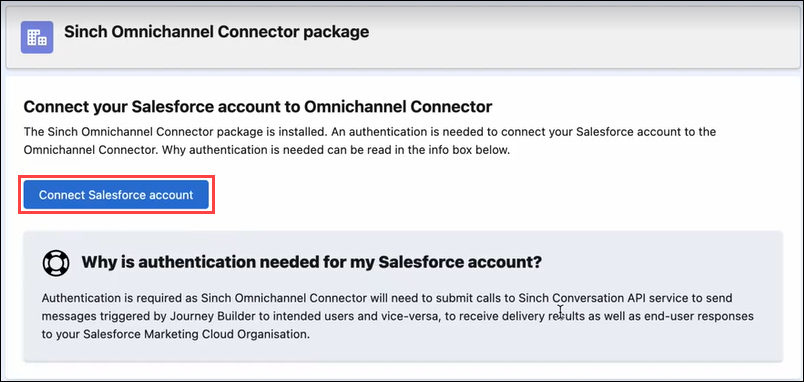
On the Sinch Omnichannel Connector package page, the Connect your Salesforce account to Omnichannel Connector section is displayed. Review the corresponding text and click Connect Salesforce account. This will connect your Salesforce account to the Omnichannel Connector.
After connecting your Salesforce account, The Connect to Conversation API section is displayed. You must connect a Conversation API project to the Omnichannel Connector. In order to connect your Conversation API project to the Omnichannel connector, you'll need to have the following pieces of information (found on the Sinch Build Dashboard) readily available:
- Your access key ID
- Your access key secret
- Your project ID
- A name for your project
To connect your account, click Add project. Then, simply enter the access key ID, access key secret, project ID, and project name information into the corresponding fields and click Add project. You may also add another Conversation API project or disconnect your Conversation API project from the Omnichannel Connector app at any time.
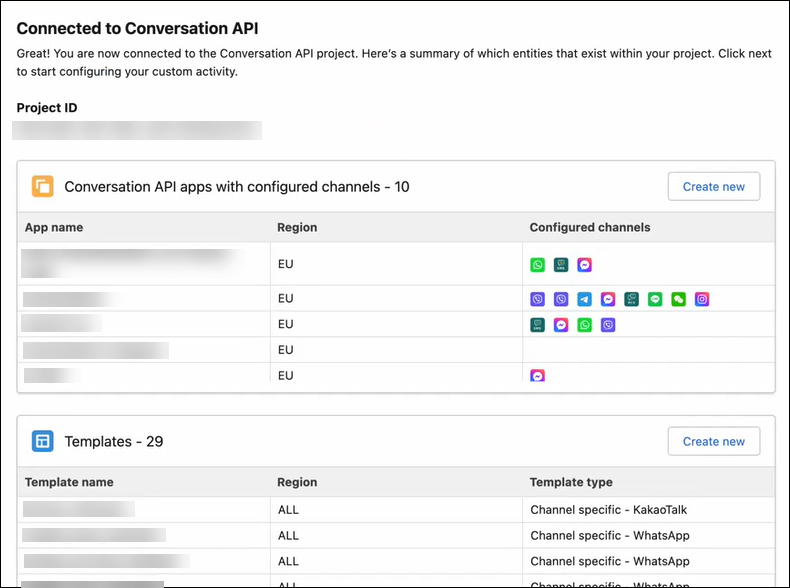
A summary of your configured Conversation API apps, channels, and templates is displayed.
After connecting your accounts, you may navigate back to the screen on which you configured the connections to update global settings that apply to all Omnichannel Connectory activities across your organization.
Currently, the only available global setting is the option to store all delivery report events as separate entries in a corresponding Data Extension.
To update these global settings:
- Click the AppExchange tab in the Salesforce Marketing Cloud UI and select Omnichannel Connector.
- Navigate to the Global settings panel.
- Configure the settings appropriately for your solution. Note that these settings will apply to all omnichannel Connector activities across your organization.
- Click Save changes.