Sinch Agentic Tools

 Sinch SDKs


 Sinch CLI & Functions
The Omnichannel Connector app provides you access to the Omni Entry entry souce, which is a type of Event entry source, that you can use in your journey.
This entry source listens for mobile originated (MO) messages delivered with webhooks associated with your Conversation API solution. This information is stored in an automatically created Data Extensions that are associated with the Omni Entry source. You are then able to use that information to trigger your Journey and propagate information throughout it.
There are two types of Omni Entry listeners you may create:
| Omni Entry type | Description | Data Extensions |
|---|---|---|
| Business-initiated | This event will listen for inbound messages sent during a conversation initiated by you (the business). These MO messages will come from contacts that already existing within your Conversation API solution. | Either Omnichannel Connector Inbound Messages or a custom-named Data Extension, depending on the configuration of the corresponding journey. |
| User-initiated | This event will listen for inbound messages sent by a contact that does not yet exist within your Conversation API solution. Note that, after receiving such a message, a contact will immediately be created for the sender within your Conversation API solution. Therefore, this type of Omni Entry event will only ever collect the first MO message sent by a (then) unknown user. It is considered best practice to only have one User-initated event active in your solution at a time. | Omnichannel Connector Inbound Messages |
Note the following:
In order for the Omnichannel Connector app to successfully collect information from Conversation API callbacks, you must ensure that you have configured a webhook that connects with the Omnichannel Connector app. See the Conversation API prerequisites section for more information.
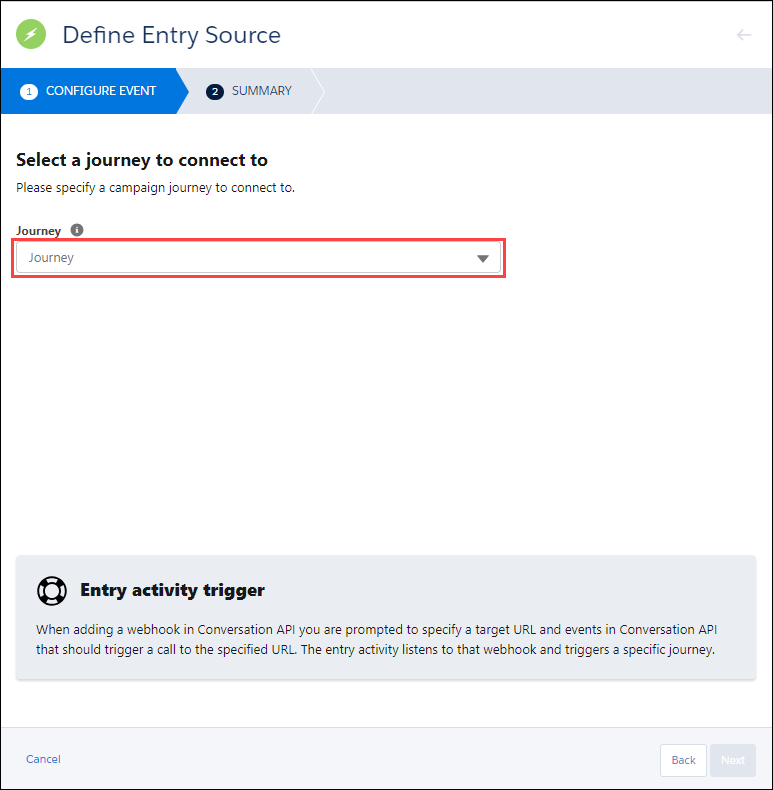
When configuring a Business-intiated Omni Entry within an Event entry source, you will select a journey for it to listen to. The Omni Entry entry source will collect MO messages sent in response to the messages sent during the that journey.
The Data Extensions that are automtically created by the Omni Entry Event are accessible outside of the journey. You can export the data (that is, the MO messages) contained in this Data Extension for external processing.
The tables below details how the fields in these automatically created Data Extensions are mapped to the corresponding Conversation API fields:
| Business-initiated Data Extension field | Conversation API MO field | Description |
|---|---|---|
id | N/A | An automatically created unique ID. Used for backed processing |
contactId | contact_id | The ID of the contact from which the MO originated. This is a unique value assigned to the contact by the Conversation API. |
userResponse | message | The content of the MO message. |
identity | The identity field of the channel_identity object | A channel recipient identity, which is an identifier for the contact for a specific channel. For example, a phone number in the case of the SMS and WhatsApp channels. |
channel | The channel field of the channel_identity object | The channel on which the MO message was sent and with which the identity is associated. |
status | N/A | The status of the message. This field is not normally included in inbound message callbacks, but may instead be populated when another callback is triggered. |
| User-initiated Data Extension field | Conversation API MO field | Description |
|---|---|---|
id | N/A | An automatically created unique ID. Used for backed processing |
userMessage | message | The content of the MO message. |
identity | The identity field of the channel_identity object | A channel recipient identity, which is an identifier for the contact for a specific channel. For example, a phone number in the case of the SMS and WhatsApp channels. |
channel | The channel field of the channel_identity object | The channel on which the MO message was sent and with which the identity is associated. |
createdAt | N/A | The time that the data extension entry was created. |
The Data Extensions that are automatically created by the Omni Entry Event should not be modified. If you wish to capture other data or fields, work with your Sinch account manager to create a separate Data Extension.
To successfully include the Omni Entry entry source in your journey, you must:
Additionally, it is considered a best practice to the include an Omni Flow flow control immediately after the Omni Entry entry source. This allows you to direct the path of the journey based on keywords extracted from an MO sent by your end-users. See Using the Omni Flow flow control section for more information.
To add the Omni Entry entry source to your Salesforce Journey:
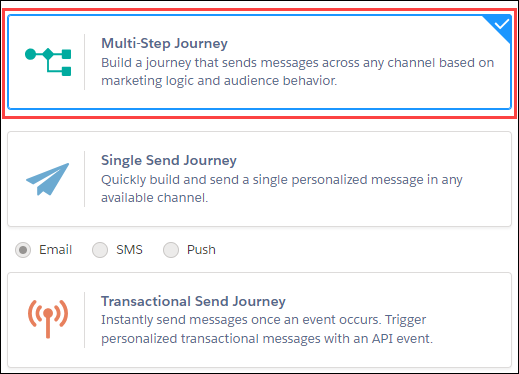
Navigate to or create the journey to which you'd like to add the Omni Entry entry source. If you are creating a journey, ensure you select a Multi-Step journey.
Locate the Event entry source under the ENTRY SOURCES category on the left side of the screen.

Click and drag the Event entry source to the entry source space on your journey.
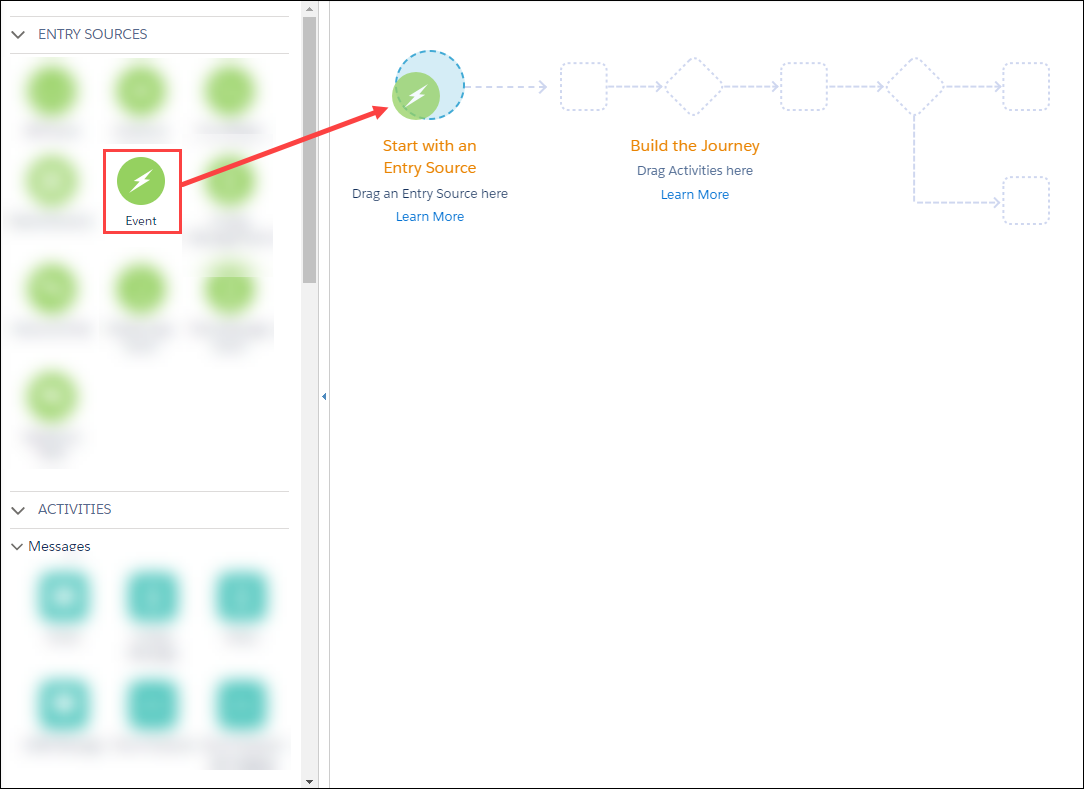
After it has been added to your journey, you must configure the Omni Entry entry source.
To configure the Omni Entry entry source:
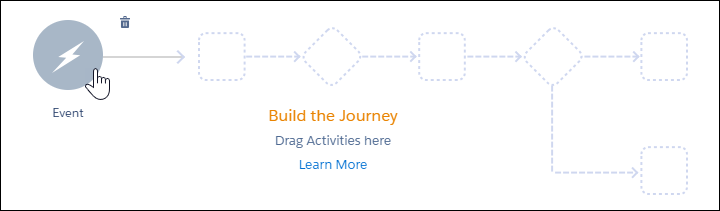
Double-click the Event entry source that is included in your journey.
Select the Omni Entry Event type to continue the configuration.
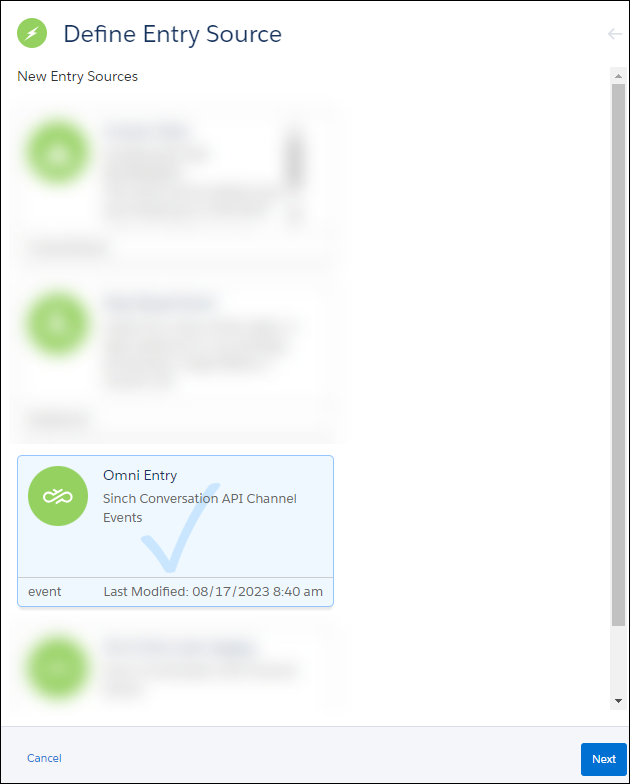
Click Next.
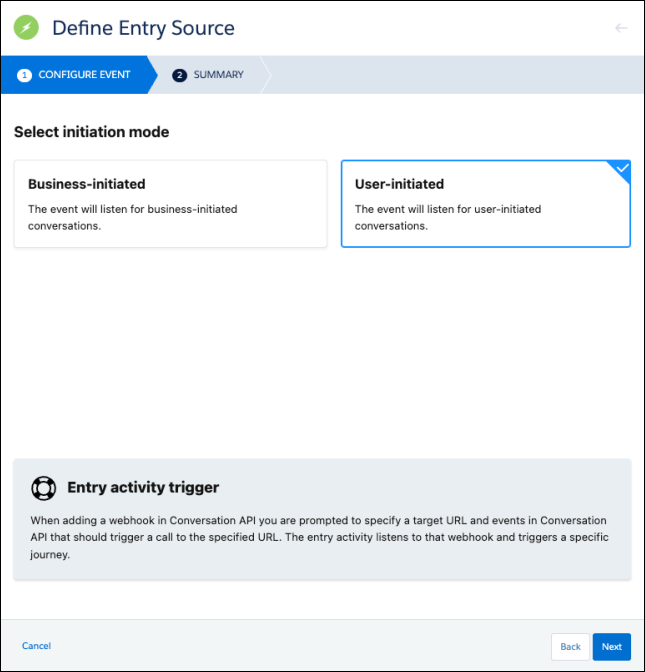
The CONFIGURE EVENT page is displayed. Select your initiation mode.
- Business-initiated can be selected if you plan to begin conversations by sending messages to known recipients. Select the journey to which this entry source wil listen from the Journey drop-down list. The MO messages sent in respones to the selected journey will be used to populate an automatically created Data Extension.
User-initiated can be selected if you anticipate conversations being started by unknown contacts (that is, contacts that don't yet exist in your Conversation API contact list). These message events will be stored in an automatically created data extension called Omnichannel Connecter User-Initiated Messages. Note the following:
Upon receiving a message from an unknown contact, a new contact is created for them in the Conversation API system. So, while that first message is stored in the Omnichannel Connector User-Initiated Messages data extension, further messages from this user will be stored in the Omnichannel Connector Inbound Messages data extension.
To avoid discrepancies, you should have, at most, one active User-initiated Omni Entry entry source.
Click Next.
The SUMMARY page is displayed. Confirm that you have made the correct journey selection and click Done. Alternatively, if you'd like to select a different journey, click the Back button and make a new selection.
The Salesforce Marketing Cloud Journey Builder provides you with a number of default entry sources that you can use in your Journey. When configuring Journeys that make use of the Sinch Omnichannel Connector, you will likely most often use the Data Extension entry source. This is a flexible data structure that allows you to create, modify, and update rows of information that can then be used throughout the journey.
In addition to Data Extensions, you may also use Events, API Events, and Salesforce Data as an entry source. API Events allow you to extract data from API calls that can be used to initiate, and propagate information throughout, your journey. While the information provided by the API Call entry source is ultimately stored in a Data Extension structure, it differs from the Data Extension entry source in that the journey only processes the information included in the API call itself, not all of the entries in the Data Source in which the information is recorded.
Entry sources other than Data Extensions, Events, API Events, and Salesforce Data are not supported at this time.